How Do I Automate Workflows in Microsoft 365

If you find yourself drowning in repetitive administrative tasks, copying data between spreadsheets, or chasing down managers for document signatures, you are likely asking a very common question: "How do I automate workflows in Microsoft 365?"
The good news is that if your organization already uses the Microsoft ecosystem, you have access to some of the most powerful enterprise-grade workflow automation tools on the market today. By leveraging these built-in solutions, you can reclaim hours of your workweek, eliminate human error, and focus on high-impact strategic initiatives.
In this comprehensive guide, we will explore exactly how you can harness the power of Microsoft productivity tools to transform your daily operations.
The Heart of Microsoft 365 Workflow Automation: Power Automate
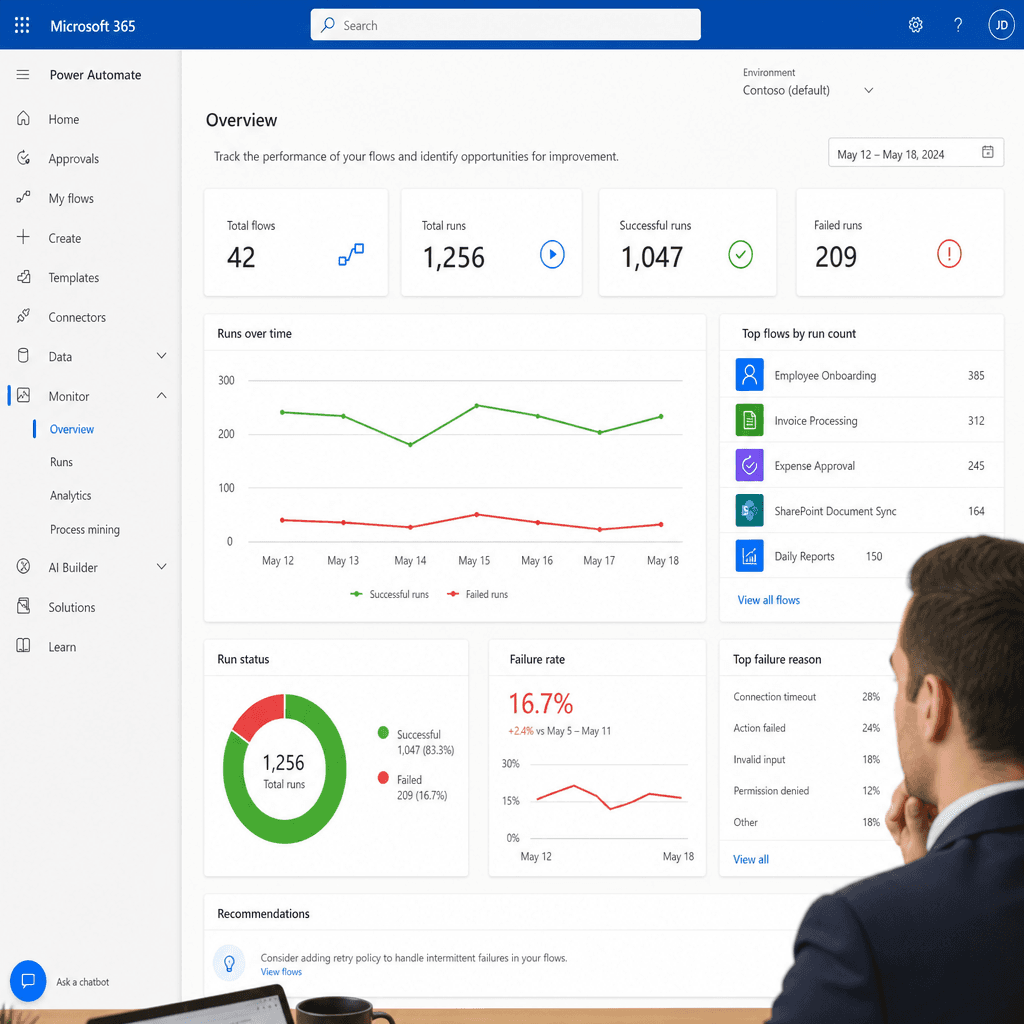
When it comes to Microsoft 365 workflow automation, Microsoft Power Automate (formerly Microsoft Flow) is the star of the show. It is designed specifically to champion low-code development for business users. This means you do not need a degree in computer science to build highly effective, customized workflows.
Power Automate operates primarily through two main functions:
- Power Automate cloud flows: These operate in the background of your cloud applications. They are triggered by specific events (like receiving an email or submitting a form) and automatically execute a series of predefined actions across your apps.
- Desktop flows: This introduces robotic process automation in Office 365. If you rely on legacy software that lacks a modern API, RPA allows you to record your actual screen clicks and keystrokes, training a "bot" to perform repetitive tasks on your desktop exactly as a human would.
Jumpstart Your Journey: Templates for Quick Wins
Staring at a blank canvas can be intimidating. Fortunately, Microsoft provides thousands of pre-built workflow automation templates for beginners. These templates allow you to deploy time-saving solutions in just a few clicks.
Connecting Your Communication Channels
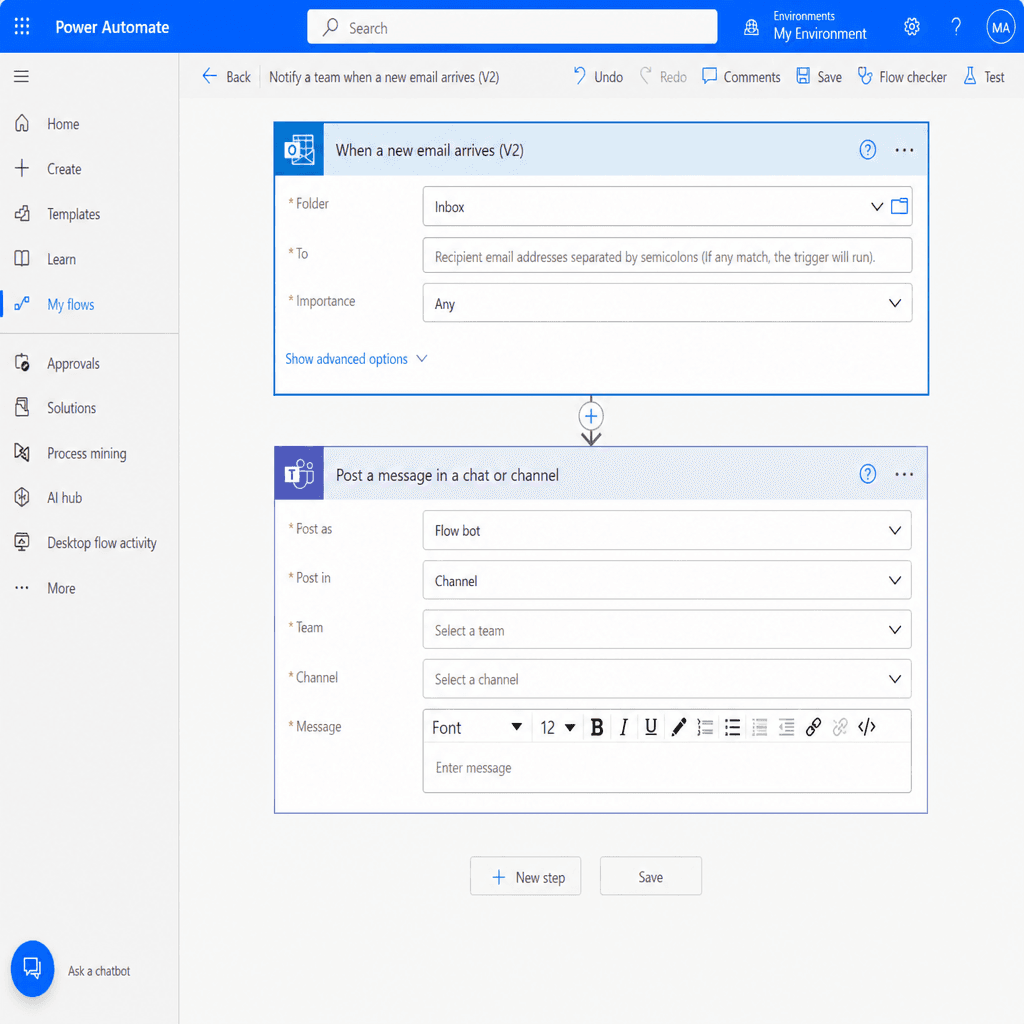
One of the most popular starter automations involves connecting Microsoft Teams with Outlook. If you receive hundreds of emails a day, important messages from your boss or key clients can easily get buried. Using a template, you can set up a cloud flow that instantly pings you with a direct message in Microsoft Teams whenever an email from a specific VIP sender hits your Outlook inbox.
Communicating Data Automatically
Another common scenario is figuring out how to trigger emails from Excel spreadsheet data. Imagine you manage a project tracker or an inventory list in Excel Online. You can create a flow that automatically reads the rows in your spreadsheet and sends formatted emails when a specific date is reached-such as an automated reminder when a contract is 30 days away from expiring.
Elevating Operations: Advanced Automation Tactics
Once you are comfortable with basic triggers and actions, you can start building more complex, multi-step processes to drastically reduce manual data entry with Power Automate.
Streamlining Approvals
One of the most immediate ROI-generating workflows is setting up an automated approval process in SharePoint. Instead of emailing a document back and forth for review, a user can upload a file or submit a listitem in SharePoint. This triggers a flow that sends a formatted "Approve/Reject" card directly to a manager's Outlook or Teams account.
To make this even more dynamic, you can utilize conditional logic in Microsoft 365 flows. For example:
- If the manager clicks "Approve," the flow automatically moves the document to a "Finalized" folder and notifies the team.
- If the manager clicks "Reject," the flow leaves the document in draft status and assigns a task back to the creator requesting revisions.
Creating Custom Interfaces
For full-scale digital transformation, combine these background flows with business process automation using Power Apps. Power Apps allows you to build custom, mobile-friendly front-end applications for your employees. A field technician could use a custom Power App on their phone to input inspection data, which then triggers a Power Automate flow to generate a PDF report and email it directly to the client.
SOS Forms: A Practical Starting Point for Workflow Automation
Automation depends on consistent inputs. When requests arrive via free-form emails or chat messages, teams lose time clarifying details and re-entering data into SharePoint lists, spreadsheets, or ticketing systems.
SOS Forms helps you standardize intake for common workflows (such as IT requests, onboarding, change requests, inspections, or service intake), making it easier to:
- Trigger Power Automate flows from each submission
- Route approvals and notifications in Teams or Outlook
- Create or update SharePoint list items and documents with clean, structured data
In short, better inputs make your Microsoft 365 workflow automation simpler, more reliable, and easier to scale.
Expanding Your Reach: Connectors and Ecosystems
A common misconception is that Microsoft tools only play nicely with other Microsoft tools. In reality, integrating third-party apps with Microsoft 365 is incredibly straightforward thanks to thousands of available "connectors." You can easily link your workflows to Google Workspace, Slack, Mailchimp, Asana, and X (formerly Twitter).
In that broader ecosystem, SOS Forms can be a helpful complement: use it as a consistent intake layer, then push structured submissions into Microsoft 365 and onward to other connected systems through your flows.
When looking at third-party integration, tech professionals frequently compare Microsoft Power Automate vs Zapier. While Zapier is an excellent, user-friendly tool with a vast library of external app connections, Power Automate is inherently superior if your company relies heavily on SharePoint, Teams, and Outlook. Power Automate offers deeper, more secure integration within the Microsoft tenant.
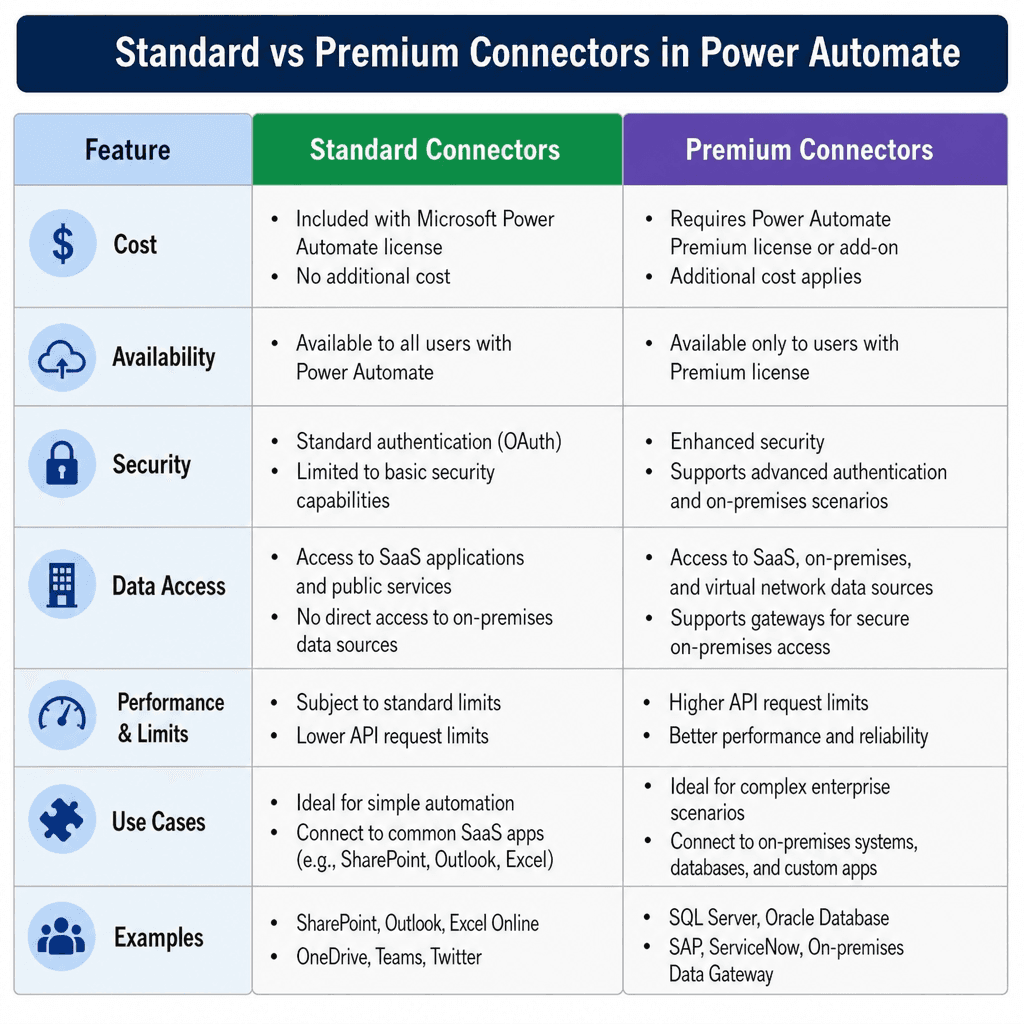
However, when building your flows, it is vital to understand standard vs premium connectors cost. Standard connectors (like Planner, OneDrive, and Outlook) are generally included in your standard Microsoft 365 business license. Premium connectors (which integrate with heavy-duty enterprise tools like Salesforce, Oracle, or custom SQL databases) require an additional standalone Power Automate licensing fee. Always check your licensing tier before committing to a complex build.
Best Practices for Microsoft 365 Automation
To ensure your digital transformation goes smoothly, keep these best practices for Microsoft 365 automation in mind:
- Map it out first: Before touching any software, draw your workflow on a whiteboard or a piece of paper. Understand every single step, decision matrix, and outcome.
- Use clear naming conventions: Name your flows and individual flow steps descriptively. Instead of "Send Email," name the step "Send Approval Request to HR Manager." This makes future maintenance much easier.
- Test with dummy data: Never test a new flow on live client data. Create a test SharePoint site or a dummy Excel spreadsheet to ensure the automation fires correctly.
- Master error resolution: Workflows will occasionally break due to changed passwords or deleted files. Get comfortable with troubleshooting Power Automate flow errors by checking the "Run history" tab. This dashboard highlights exactly which step failed and provides specific error codes to help you fix the bottleneck quickly.
Summary
So, how do you automate workflows in Microsoft 365? You start small. Begin by exploring the built-in templates to automate your own daily annoyances, like email sorting or simple notifications. As you grow more comfortable with the logic of triggers and actions, you can expand into robust SharePoint approvals and comprehensive Power Apps integrations.
And if you want a simpler way to standardize workflow intake before automation starts, SOS Forms can help by capturing clean, consistent requests that are easier to route, approve, and automate in Microsoft 365.
By embracing these powerful low-code tools, you can break free from the monotony of manual data entry, streamline your team's communication, and build a more agile, efficient, and productive business environment.
About the Author
Peter Baddeley